
opencode-bifrostOpenCode plugin for multi-server persistent SSH connections via ssh-agent
7
+1 in 30 days
130
4 in 7 days
34.7
Multi-signal model
4 months ago
2026-03-29
Install and configure
opencode.jsonWrites to this project's opencode.json — applies to this repository only.
opencode.json
{
  "$schema": "https://opencode.ai/config.json",
  "plugin": ["opencode-bifrost@3.2.8"]
}
Writes to ~/.config/opencode/opencode.json — applies to every project.
~/.config/opencode/opencode.json
{
  "$schema": "https://opencode.ai/config.json",
  "plugin": ["opencode-bifrost@3.2.8"]
}
If you want to modify the plugin locally, install it into the project and reference the local path.
shell
pnpm add -D opencode-bifrostopencode loads npm dependencies through its embedded runtime on startup and caches them locally — no manual global install needed.


Multi-server persistent SSH connection plugin for OpenCode.
Bifrost maintains persistent SSH connections to one or more servers using the ssh2 library (pure JavaScript), so every command reuses the same connection instead of reconnecting each time. Works cross-platform on macOS, Linux, and Windows.
Bifrost never reads your private key files. Authentication runs entirely through your system's ssh-agent.
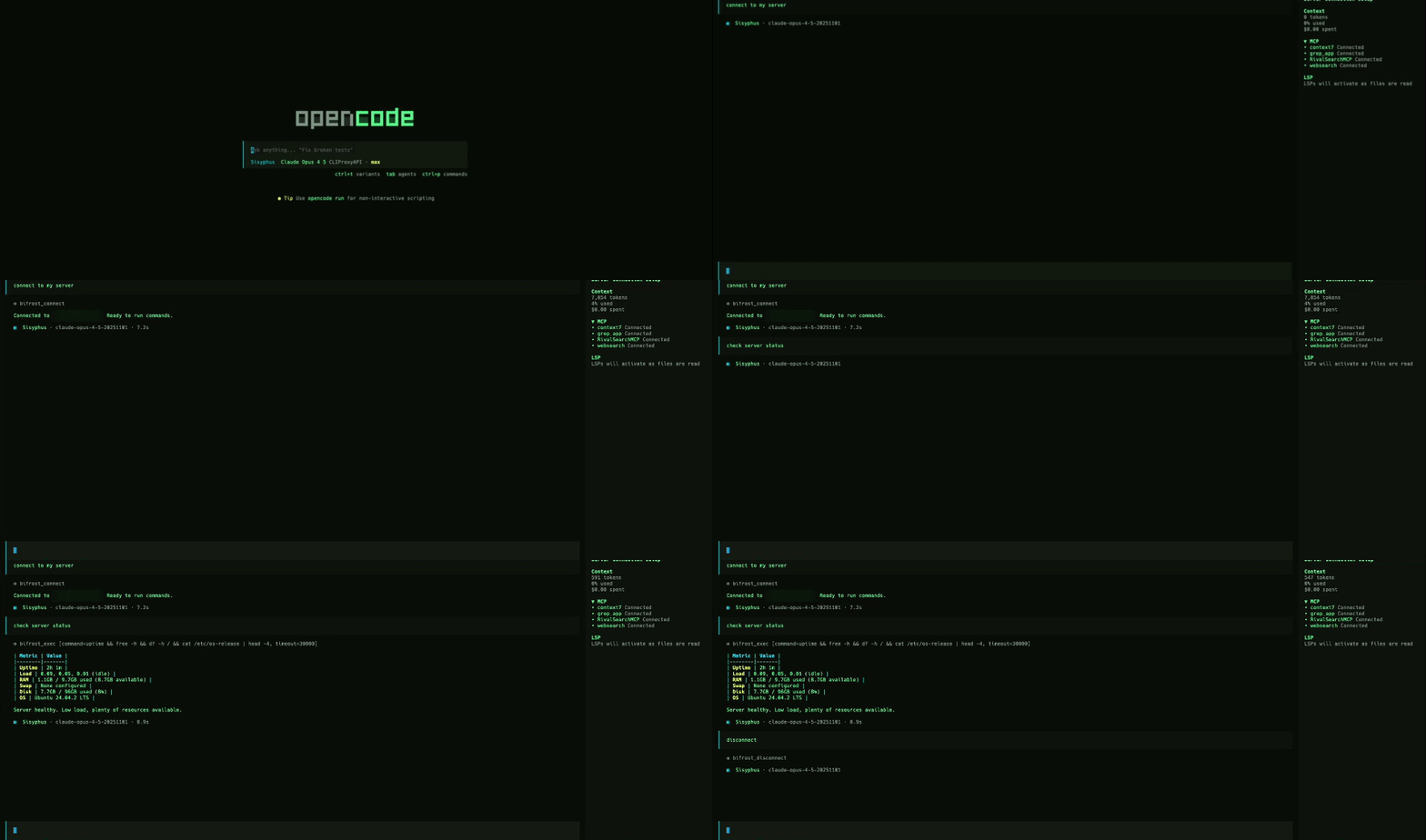
Installation
1. Register the plugin
Add to your ~/.config/opencode/opencode.json:
{
  "plugins": [
    "opencode-bifrost@latest"
  ]
}
2. Create the SSH config
Create ~/.config/opencode/bifrost.json:
Single server
{
  "host": "your-server-ip",
  "user": "root",
  "keyPath": "~/.ssh/id_rsa"
}
Multiple servers
{
  "servers": {
    "production": {
      "host": "192.168.1.100",
      "keyPath": "~/.ssh/prod_key"
    },
    "staging": {
      "host": "10.0.0.5",
      "user": "deploy",
      "keys": ["~/.ssh/staging_ed25519", "~/.ssh/staging_rsa"]
    },
    "dev": "root@dev.example.com:2222"
  },
  "default": "production"
}
3. Restart OpenCode
The plugin is installed automatically on startup.
Authentication
Bifrost authenticates exclusively through your system's ssh-agent. It never opens or reads private key files directly.
How it works
- When you configure
keyPathorkeysin bifrost.json, Bifrost runsssh-add <path>to load those keys into your agent before connecting - If keys from
~/.ssh/configmatch the server hostname, those are loaded too - ssh2 then authenticates via the agent — no key data ever passes through Bifrost
Prerequisites
macOS/Linux:
# Start the agent (usually already running)
eval "$(ssh-agent -s)"

# Add your key manually (or let Bifrost do it via keyPath/keys config)
ssh-add ~/.ssh/your_key
Windows:
- OpenSSH Agent: Enable the
ssh-agentservice in Windows Settings → Apps → Optional Features - Pageant (PuTTY): Supported when explicitly configured (
SSH_AUTH_SOCK=pageant) - Default behavior on Windows: if
SSH_AUTH_SOCKis empty or POSIX-style (for example/tmp/...), Bifrost uses\\.\\pipe\\openssh-ssh-agent. - Bifrost prefers native Windows OpenSSH
ssh-add.exe(System32 OpenSSH) for key loading and falls back to PATH-basedssh-addvariants.
Key Resolution
When connecting, Bifrost loads keys into the agent in this order:
| Priority | Source | Config field |
|---|---|---|
| 1 | Explicit single key | keyPath |
| 2 | Explicit key list | keys |
| 3 | SSH config | ~/.ssh/config IdentityFile entries matching the hostname |
If none are configured, the agent must already have the right key loaded.
Configuration Reference
Server fields
| Field | Required | Default | Description |
|---|---|---|---|
host |
Yes | - | Server IP or hostname |
user |
No | root |
SSH username |
keyPath |
No | - | Path to SSH private key — loaded into agent via ssh-add |
keys |
No | - | Array of key paths — each loaded into agent via ssh-add |
port |
No | 22 |
SSH port |
connectTimeout |
No | 10 |
Connection timeout in seconds |
serverAliveInterval |
No | 30 |
Keepalive interval in seconds |
Multi-server fields
| Field | Required | Default | Description |
|---|---|---|---|
servers |
Yes | - | Map of server name → config object or shorthand string |
default |
No | first server | Name of the default server |
String shorthand
Servers can be defined as strings instead of objects:
| Shorthand | Equivalent |
|---|---|
"192.168.1.100" |
{ "host": "192.168.1.100", "user": "root", "port": 22 } |
"deploy@10.0.0.5" |
{ "host": "10.0.0.5", "user": "deploy", "port": 22 } |
"deploy@10.0.0.5:2222" |
{ "host": "10.0.0.5", "user": "deploy", "port": 2222 } |
Backward compatibility
The old single-server format still works:
{
  "host": "your-server-ip",
  "user": "root",
  "keyPath": "~/.ssh/id_rsa"
}
It's automatically treated as a single server named "default".
Note: Password authentication is not supported. Use SSH keys via ssh-agent.
Usage
Once configured, the agent automatically uses Bifrost when you mention:
- "server", "remote", "deploy", "production", "staging"
- "check the server", "run on server", "server logs"
Available Tools
| Tool | Description |
|---|---|
bifrost_connect |
Establish SSH connection. Pass server to target a specific one. |
bifrost_exec |
Run a command on a server. Pass server to target a specific one. |
bifrost_status |
Show status of all configured servers |
bifrost_disconnect |
Close connection(s). Pass server for one, or omit for all. |
bifrost_upload |
Upload a file to a server |
bifrost_download |
Download a file from a server |
Example Prompts
"How's the server doing?"
"Show me the nginx logs on production"
"Restart docker on staging"
"Upload config.yaml to /etc/app/ on production"
"Check disk space on all servers"
Multi-server examples
"Connect to staging and check the logs"
"Run docker ps on production"
"Upload the config to the dev server"
The agent automatically passes the server parameter based on context.
How It Works
Bifrost uses ssh2 to maintain persistent SSH connections in-process:
First command:  [Connect] -----> [Execute] -----> [Keep connection open]
Next commands:  [Reuse conn] --> [Execute] -----> [Still open]
Session ends:   [Auto-disconnect all]
With multiple servers, each gets its own persistent connection managed independently.
Security
- Bifrost never reads private key files — authentication runs through ssh-agent
- Path traversal (
../) blocked - Command injection (
;,|,&,`,$()) blocked - Shell expansion (
*,?,~,{}) blocked - Unicode bypass attempts detected and rejected
- Null bytes and control characters rejected
Requirements
- OpenCode with plugin support
- SSH agent running (
ssh-agenton Unix/Mac, OpenSSH Agent or Pageant on Windows)
Development
# Run tests
bun test

# Type check
bun run typecheck

# Build
bun run build
License
MIT